How Alondra works
The daemon does the work. Everything else is how you reach it.
The orchestrator turns a request into tasks
You write a request in the terminal app, the Mac app or the iPhone app. The orchestrator is an agent session on one of your accounts, so it uses your tokens like any other session. Alondra starts it when there is work and stops it when there is not. It reads the request, writes a plan and splits it into tasks. When the work calls for it, the plan comes back to you as a card to approve before any code changes.
Tasks wait for each other
A task can depend on others. It starts once they have landed, and a pull request built on top of another task’s pull request is merged after it. Tasks with nothing between them run at the same time.
Before it starts a node, Alondra looks at the memory, the processor and the disk of your Mac, and at how many nodes may work at once: a number you set in Settings, or one Alondra works out from your Mac’s cores and what its nodes take. When there is no room, the task waits and says why. Memory and processor load only hold new starts: a running node is never paused or stopped for them. When the disk runs low, a node’s next turn waits until there is room.
A model and an account for each task
Each task gets a node: an agent session, Claude Code or Codex with your own login, running in a git worktree that Alondra creates for that task. The orchestrator picks its model and its reasoning effort, as Which model, and how much effort explains, and Alondra runs it on one of your accounts.
Decisions reach you, conversations do not
You never read the agents’ conversations. A task shows what its agent is doing right now and the last thing it said. Whatever needs you, a question, a plan, a permission or a finished pull request, arrives as a card in the inbox.
Deciding and doing stay apart
You and the orchestrator decide what gets built: only the orchestrator creates tasks and sets what each one waits for. A node only does its own task. When it sees something outside it, it suggests it to the orchestrator, which folds it into the task, turns it down with a reason or makes it a new task.
When you accept a delivery, Alondra merges the pull request and removes the worktree. You can also let it merge by itself once the checks pass.
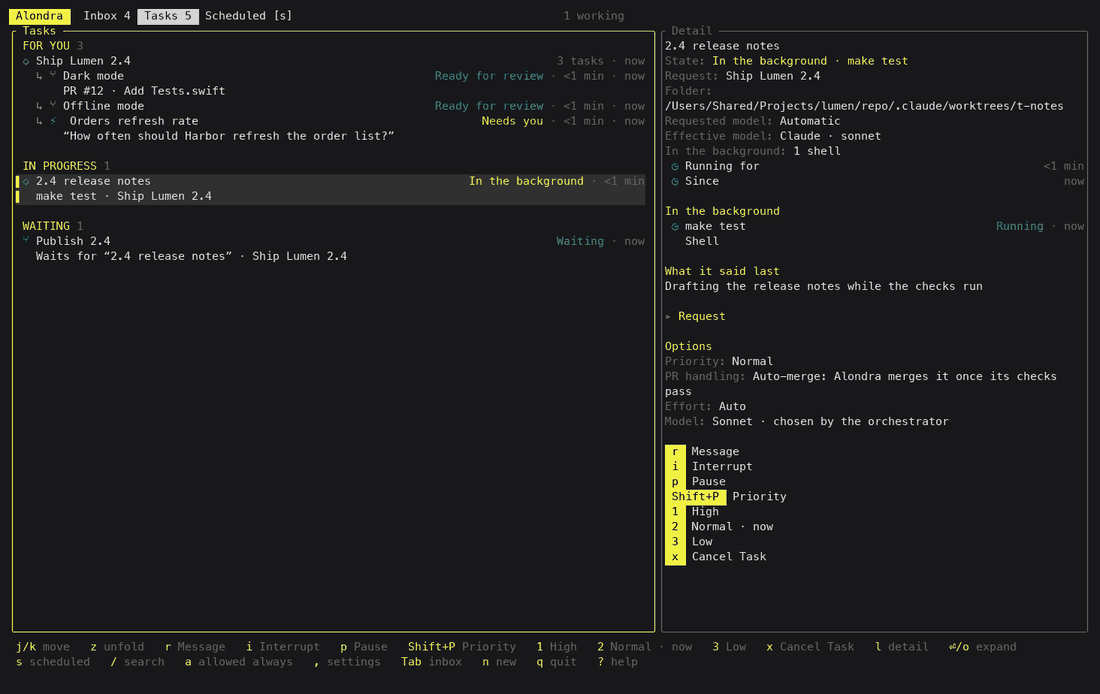
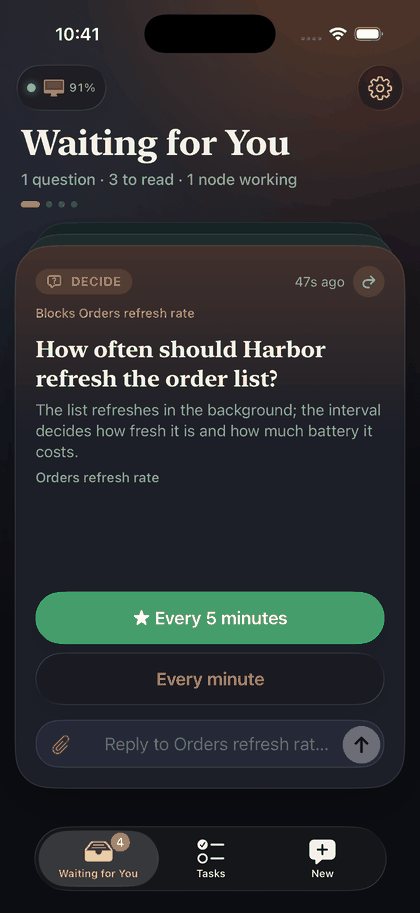
The inbox holds one decision per card
Everything that needs you arrives as a card: a question with its answers, a plan or a document to review, a permission, a pull request, a request for a file or a value, a notice. A card is one thing and carries what you need to decide it, so a plan to approve is never mixed with a question about its details.
You see the same cards in the terminal app, the Mac app and the iPhone app, and an answer from any of them reaches the node that asked. The iPhone app notifies you, and the first answers of a question show on its notification. Using them needs the phone unlocked.
Cards can carry images and videos. A video shows as a tile with its size and downloads only when you tap it.
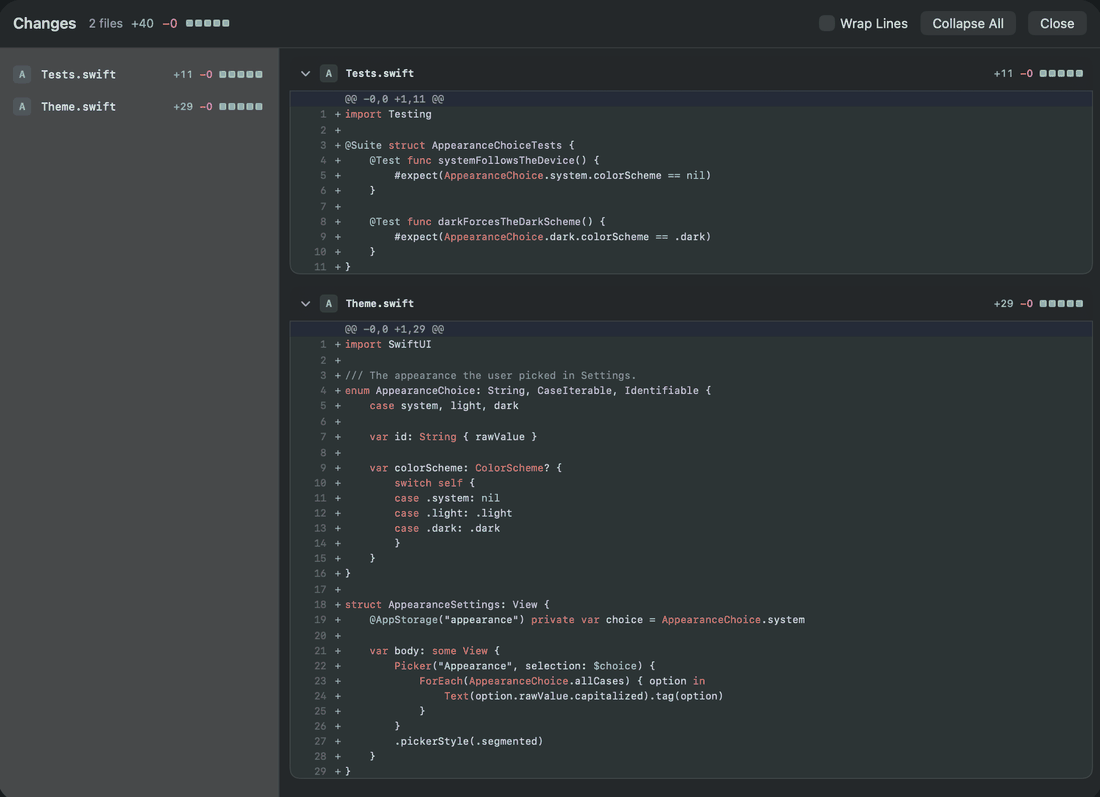
Reviewing a pull request
A finished task arrives as a pull request card with how its checks went. In the iPhone and Mac apps it opens the changes file by file, and you tap or click a line to comment on it. In the terminal app the diff opens in tuicr, which Homebrew installs with Alondra.
Accept it and Alondra merges the pull request. Request changes and the node gets your line comments and your note in one message, and carries on in the same worktree. If the pull request moves on before you send them, the comments on old lines are dropped.
The architecture
The daemon, alondrad, runs on your Mac. It keeps the state, runs the orchestrator and the nodes, and serves your devices. The terminal app, the iPhone app and the Mac app are its clients.
- A direct connection, when the network allows it.
- Through the relay, when it does not.
- Pairing and push. No task content goes this way.
- A sealed envelope. The relay passes it along and cannot open it.
Alondra Cloud is a server with two jobs. The control plane handles accounts, pairing, the list of your devices and push notifications. The relay passes encrypted traffic between your devices when they cannot connect directly. The server does not run agents and holds no tasks, cards, diffs or transcripts: the routes that once carried content now answer that they have been removed.
Reaching your Mac from anywhere
On the same Wi-Fi, a device finds your Mac with Bonjour and talks to it over the local network. Anywhere else a connection starts through the Alondra Cloud relay and moves to a direct connection as soon as one opens. You pair a device once, in person, and after that you install nothing on the network: no Tailscale, no VPN, no port forwarding to set up.
A direct path does not always open. A phone on mobile data usually sits behind a router that blocks it, and then a direct path opens only if your Mac’s network allows it: a router port mapping, a forwarded port or public IPv6. Otherwise the relay carries the session. It works the same, with a little more latency. When we measured it from a phone on mobile data, 0 of 30 connections went direct, so away from home expect the relay. Settings in the iPhone and Mac apps show whether each Mac is reached directly or through the relay, and why a direct path does not open; in the terminal, alondra doctor says why.
On the same Wi-Fi your iPhone connects straight to your Mac and needs no account. Without one it gets no notifications.
Sealed between your devices
A request or an answer is sealed on the device that sends it and opened only by the device that receives it, on the local network and through the relay alike. Each envelope uses a fresh P-256 key agreed with the receiver’s key, HKDF-SHA256 and ChaCha20-Poly1305, and the sender signs it with ECDSA over P-256. Push notifications are sealed the same way for each device. The relay moves envelopes it cannot open.
Pairing happens in person, and your Mac has to approve it. On the same Wi-Fi your iPhone and your Mac each show the same six-character code, and you approve it in the Mac app, the terminal app or the notification. Elsewhere you run alondra device invite on the Mac, scan the QR code it prints, and type the code your iPhone shows back on the Mac. An Alondra Cloud account alone cannot read what your Mac holds.
What the server does see, and what it never receives, is on the security and privacy page.
More than one Mac
Pair the iPhone app, the Mac app and the terminal app with each of your Macs and switch between them; in the terminal app the ] key moves to the next Mac. While the iPhone app is open it keeps a connection to every paired Mac, so switching does not wait for one.
Coming soonShowing the inbox and the tasks of several Macs together on one screen.
Which model, and how much effort
Alondra runs Claude Code and Codex, alone or together, with several accounts of each. For each task the orchestrator picks a model and a reasoning effort from what your connected accounts offer. It takes the strongest model for risky work such as concurrency, security or data migrations, and otherwise the cheapest one that fits. It follows written rules over a table of the models your accounts offer: each model’s capability sheet and, once a model has finished enough of your tasks, how they went, such as how many were done the first time and what they cost on average. It records its reason.
Alondra then runs the task on one of your accounts that offers that model, in the order you set, and passes over any whose plan has run out. You can pin a task to one account in its form.
You can set the model and the effort yourself in the apps and in the terminal. A choice you make wins.
Coming soonA decider that learns from the results of past tasks and adjusts its choices.
Metrics: how your tasks went
Settings › Metrics on the iPhone and the Mac shows how your tasks went. In the terminal app Shift+M opens the same view, and alondra metrics prints it.
For the tasks that ended, it counts how many were done with no rework, the rounds of changes and the times each one needed you, and how many were reopened, relaunched or cancelled. It adds up their cost in total, per task, per merged pull request and per changed line; their input, output and cache tokens; their steps, and how many of those only looked or waited; and the time they spent working, waiting for you, queued and blocked.
You pick the last 7, 30 or 90 days or all time, and compare them with the period before, or with the days since a version or a date. The results split by model and effort and by project, and choosing a row filters by it. alondra metrics can also split them by provider and by kind of task.
The cost is the provider’s own estimate, not your bill. Codex reports tokens but no price, so its tasks show no cost.
The numbers are there for you to see which model does your kind of work well and what it costs, and the orchestrator reads them too: its table of models carries, for each model, how many of your tasks it finished, how many were done the first time and what they cost on average.
MCP servers in one place
Settings on the Mac, the iPhone and in the terminal list the MCP servers your agents use, your own and each project’s, with the status of each. On the Mac you can connect a server that needs a sign-in, reconnect it, sign out, check it again and delete one you added to your own settings. Connecting goes through a node that uses the server, so a server no task uses yet waits until one does.
Coming soonAuthorizing an MCP server from a device other than the Mac.
Also in the box
- Scheduled runs that start work on a timetable.
- The apps and the terminal app in English and Spanish.